class: center, middle, inverse, title-slide .title[ # 量化金融与金融编程 ] .subtitle[ ## L02 ggplot2 数据可视化 ] .author[ ### <br>曾永艺 ] .institute[ ### 厦门大学管理学院 ] .date[ ### <br>2022-09-23 ] --- class: middle, hide_logo background-image: url(imgs/logo-ggplot2.png) background-size: 10em background-position: 90% 50% <div> <style type="text/css">.xaringan-extra-logo { width: 50px; height: 50px; z-index: 0; background-image: url(imgs/logo-sm.png); background-size: contain; background-repeat: no-repeat; position: absolute; top:0.5em;right:0.5em; } </style> <script>(function () { let tries = 0 function addLogo () { if (typeof slideshow === 'undefined') { tries += 1 if (tries < 10) { setTimeout(addLogo, 100) } } else { document.querySelectorAll('.remark-slide-content:not(.title-slide):not(.inverse):not(.hide_logo)') .forEach(function (slide) { const logo = document.createElement('div') logo.classList = 'xaringan-extra-logo' logo.href = null slide.appendChild(logo) }) } } document.addEventListener('DOMContentLoaded', addLogo) })()</script> </div> -- - ## .font120[<svg aria-hidden="true" role="img" viewBox="0 0 581 512" style="height:1em;width:1.13em;vertical-align:-0.125em;margin-left:auto;margin-right:auto;font-size:inherit;fill:currentColor;overflow:visible;position:relative;"><path d="M581 226.6C581 119.1 450.9 32 290.5 32S0 119.1 0 226.6C0 322.4 103.3 402 239.4 418.1V480h99.1v-61.5c24.3-2.7 47.6-7.4 69.4-13.9L448 480h112l-67.4-113.7c54.5-35.4 88.4-84.9 88.4-139.7zm-466.8 14.5c0-73.5 98.9-133 220.8-133s211.9 40.7 211.9 133c0 50.1-26.5 85-70.3 106.4-2.4-1.6-4.7-2.9-6.4-3.7-10.2-5.2-27.8-10.5-27.8-10.5s86.6-6.4 86.6-92.7-90.6-87.9-90.6-87.9h-199V361c-74.1-21.5-125.2-67.1-125.2-119.9zm225.1 38.3v-55.6c57.8 0 87.8-6.8 87.8 27.3 0 36.5-38.2 28.3-87.8 28.3zm-.9 72.5H365c10.8 0 18.9 11.7 24 19.2-16.1 1.9-33 2.8-50.6 2.9v-22.1z"/></svg>] 的绘图系统 -- - ## `ggplot2` 入门 - ### The Layered Grammar of Graphics - ### 将数据映射为几何对象的图形属性 - ### 统计变换、位置调整、坐标、分面 - ### 标签、标注、标度、主题等 -- - ## `ggplot2` extensions --- ### 一图胜千言 <img src="L02_Visualization_files/figure-html/datasaurus-1.png" width="85%" style="display: block; margin: auto;" /> --- class: inverse, center, middle # 1. .font120[<svg aria-hidden="true" role="img" viewBox="0 0 581 512" style="height:1em;width:1.13em;vertical-align:-0.125em;margin-left:auto;margin-right:auto;font-size:inherit;fill:currentColor;overflow:visible;position:relative;"><path d="M581 226.6C581 119.1 450.9 32 290.5 32S0 119.1 0 226.6C0 322.4 103.3 402 239.4 418.1V480h99.1v-61.5c24.3-2.7 47.6-7.4 69.4-13.9L448 480h112l-67.4-113.7c54.5-35.4 88.4-84.9 88.4-139.7zm-466.8 14.5c0-73.5 98.9-133 220.8-133s211.9 40.7 211.9 133c0 50.1-26.5 85-70.3 106.4-2.4-1.6-4.7-2.9-6.4-3.7-10.2-5.2-27.8-10.5-27.8-10.5s86.6-6.4 86.6-92.7-90.6-87.9-90.6-87.9h-199V361c-74.1-21.5-125.2-67.1-125.2-119.9zm225.1 38.3v-55.6c57.8 0 87.8-6.8 87.8 27.3 0 36.5-38.2 28.3-87.8 28.3zm-.9 72.5H365c10.8 0 18.9 11.7 24 19.2-16.1 1.9-33 2.8-50.6 2.9v-22.1z"/></svg>] 的绘图系统 --- ### .font120[<svg aria-hidden="true" role="img" viewBox="0 0 581 512" style="height:1em;width:1.13em;vertical-align:-0.125em;margin-left:auto;margin-right:auto;font-size:inherit;fill:currentColor;overflow:visible;position:relative;"><path d="M581 226.6C581 119.1 450.9 32 290.5 32S0 119.1 0 226.6C0 322.4 103.3 402 239.4 418.1V480h99.1v-61.5c24.3-2.7 47.6-7.4 69.4-13.9L448 480h112l-67.4-113.7c54.5-35.4 88.4-84.9 88.4-139.7zm-466.8 14.5c0-73.5 98.9-133 220.8-133s211.9 40.7 211.9 133c0 50.1-26.5 85-70.3 106.4-2.4-1.6-4.7-2.9-6.4-3.7-10.2-5.2-27.8-10.5-27.8-10.5s86.6-6.4 86.6-92.7-90.6-87.9-90.6-87.9h-199V361c-74.1-21.5-125.2-67.1-125.2-119.9zm225.1 38.3v-55.6c57.8 0 87.8-6.8 87.8 27.3 0 36.5-38.2 28.3-87.8 28.3zm-.9 72.5H365c10.8 0 18.9 11.7 24 19.2-16.1 1.9-33 2.8-50.6 2.9v-22.1z"/></svg>] 的绘图系统 <img src="imgs/RGraphics-fig1.14-R-graphics-system.png" width="58%" style="display: block; margin: auto;" /> --- ### .font120[<svg aria-hidden="true" role="img" viewBox="0 0 581 512" style="height:1em;width:1.13em;vertical-align:-0.125em;margin-left:auto;margin-right:auto;font-size:inherit;fill:currentColor;overflow:visible;position:relative;"><path d="M581 226.6C581 119.1 450.9 32 290.5 32S0 119.1 0 226.6C0 322.4 103.3 402 239.4 418.1V480h99.1v-61.5c24.3-2.7 47.6-7.4 69.4-13.9L448 480h112l-67.4-113.7c54.5-35.4 88.4-84.9 88.4-139.7zm-466.8 14.5c0-73.5 98.9-133 220.8-133s211.9 40.7 211.9 133c0 50.1-26.5 85-70.3 106.4-2.4-1.6-4.7-2.9-6.4-3.7-10.2-5.2-27.8-10.5-27.8-10.5s86.6-6.4 86.6-92.7-90.6-87.9-90.6-87.9h-199V361c-74.1-21.5-125.2-67.1-125.2-119.9zm225.1 38.3v-55.6c57.8 0 87.8-6.8 87.8 27.3 0 36.5-38.2 28.3-87.8 28.3zm-.9 72.5H365c10.8 0 18.9 11.7 24 19.2-16.1 1.9-33 2.8-50.6 2.9v-22.1z"/></svg>] 基础绘图系统:`graphics`包 .pull-left[ - .font120[高阶绘图函数] - **`plot()`** - `barplot()`、`pie()`、`dotchart()`、`boxplot()`、`hist()`、 `stripchart()`、`stem()`、`smoothScatter()`、`spineplot()`、 `mosaicplot()`、`pairs()`、`matplot()`、`image()`、 `contour()`、`persp()` …… - .font120[低阶绘图函数] - `points()`、`lines()`、`segments()`、`arrows()`、`xspline()`、`rect()`、`polygon()`、`polypath()`、`rasterImage()`、`title()`、`text()`、`legend()` 等 ] -- .center[示例] .pull-right[ .code70[ ```r EUSM <- window(EuStockMarkets, 1992, 1994) plot(EUSM[, "FTSE"], ylim = range(EUSM), xlab = "Time", ylab = "Price", adj = 1, cex.main = 1.5) lines(EUSM[, "DAX"], lty = "dashed") title(main = "Index's Price") legend(1992, 3450, c("FTSE", "DAX"), lty = c("solid", "dashed"), bty = "n") ``` <img src="L02_Visualization_files/figure-html/EUSM-1.png" style="display: block; margin: auto;" /> ] ] --- class: inverse, center, middle background-image: url(imgs/logo-ggplot2.svg) background-size: 12% background-position: 18% 50% # 2. `ggplot2`<sup>.font60[v3.3.6]</sup> 入门 --- layout: true ### .bold[2.1 The Layered Grammar of Graphics] --- .font130[_Data Visualization_:将.bold[数据]映射为.bold[几何对象的图形属性]] -- .font110[ - 数据(.red[data]):我们想要可视化的对象,包含变量 - 几何对象(.red[geom]etries):用来呈现数据的几何图形对象,如点、条形、线条等 - 图形属性(.red[aes]thetic):几何对象的视觉属性,如`x`坐标和`y`坐标位置、颜色、形状等 ] -- <img src="imgs/visualization-stat-point.png" width="100%" style="display: block; margin: auto;" /> --- .font130[`ggplot2` 的语法模板] -- .code150[ ```r *ggplot(data = <DATA>) + * <GEOM_FUNCTION>( * mapping = aes(<MAPPINGS>), stat = <STAT>, position = <POSITION> ) + <COORDINATE_FUNCTION> + <FACET_FUNCTION> ``` ] --- layout: true ### .bold[2.2 将.red[数据]映射为几何对象的图形属性] --- ```r library(tidyverse) ``` -- ```r mpg # print(mpg) ``` ``` #> # A tibble: 234 × 11 #> manufacturer model displ year cyl trans drv cty hwy fl class #> <chr> <chr> <dbl> <int> <int> <chr> <chr> <int> <int> <chr> <chr> #> 1 audi a4 1.8 1999 4 auto(l5) f 18 29 p compact #> 2 audi a4 1.8 1999 4 manual(m5) f 21 29 p compact #> 3 audi a4 2 2008 4 manual(m6) f 20 31 p compact #> # … with 231 more rows ``` -- ```r # 查看ggplot2包内置数据集mpg的帮助文档 ?mpg # help(mpg) ``` -- 1. `displ`: a car's engine size, in litres. 2. `hwy`: a car's fuel efficiency on the highway, in miles per gallon (mpg). 3. `class`: "type" of car ... --- layout: true ### .bold[2.2 将数据.red[映射为几何对象的图形属性]] --- ```r ggplot(data = mpg) + # 数据集 geom_point( # 几何对象函数 mapping = aes(x = displ, y = hwy) # 映射:2个变量 -> 2种图形属性x坐标和y坐标 ) ``` <img src="L02_Visualization_files/figure-html/mapping1-1.png" width="60%" style="display: block; margin: auto;" /> --- ```r ggplot(data = mpg) + geom_point( * mapping = aes(x = displ, y = hwy, colour = class) # 3个映射 ) ``` <img src="L02_Visualization_files/figure-html/mapping2-1.png" width="60%" style="display: block; margin: auto;" /> --- ```r ggplot(data = mpg) + geom_point(mapping = aes(x = displ, y = hwy, shape = class)) ``` ``` #> Warning: The shape palette can deal with a maximum of 6 discrete values because more than #> 6 becomes difficult to discriminate; you have 7. Consider specifying shapes #> manually if you must have them. ``` ``` #> Warning: Removed 62 rows containing missing values (geom_point). ``` <img src="L02_Visualization_files/figure-html/mapping3-1.png" width="60%" style="display: block; margin: auto;" /> --- .font120[ - R内置有25个形状(shape),在`ggplot2`中可用名字或数字进行设定 ] .pull-left[ <img src="L02_Visualization_files/figure-html/shapes-name-1.png" width="95%" style="display: block; margin: auto;" /> ] -- .pull-right[ <img src="L02_Visualization_files/figure-html/shapes-id-1.png" width="95%" style="display: block; margin: auto;" /> ] -- .font120[ - 设定图形属性相关的说明文档 .content-box-yellow.font80[`vignette("ggplot2-specs")`] ] --- ```r ggplot(data = mpg) + geom_point( mapping = aes(x = displ, y = hwy), * shape = "triangle", size = 3, colour = "red", alpha = 0.3 # 变量无关(“大家都一样”)的几何对象图形属性应放在aes()外 ) ``` <img src="L02_Visualization_files/figure-html/mapping4-1.png" width="55%" style="display: block; margin: auto;" /> --- ```r # layered! ggplot(data = mpg) + geom_point(mapping = aes(x = displ, y = hwy)) + * geom_smooth(mapping = aes(x = displ, y = hwy)) # layered! ``` <img src="L02_Visualization_files/figure-html/mapping5-1.png" width="58%" style="display: block; margin: auto;" /> --- ```r ggplot( data = mpg, * mapping = aes(x = displ, y = hwy) # 共用映射,提前至ggplot()中 ) + geom_point() + geom_smooth() ``` <img src="L02_Visualization_files/figure-html/mapping6-1.png" width="56%" style="display: block; margin: auto;" /> --- ```r *ggplot(mpg, aes(displ, hwy)) + # 省略常用参数名 * geom_point(aes(colour = class)) + # 图层自用映射 * geom_smooth(data = filter(mpg, class == "pickup")) # 不同的数据集 ``` <img src="L02_Visualization_files/figure-html/mapping7-1.png" width="65%" style="display: block; margin: auto;" /> --- layout: false class: hide_logo ## 🙋♂️ Your Turn! <style type="text/css"> #special_timer.running { background-color: black; background-image: url(imgs/bg-stars.gif); } #special_timer.finished { background-color: black; background-image: url(imgs/bg-sqfw.gif); background-size: cover; } #special_timer.running .countdown-digits { color: #fdf6e3; } #special_timer.finished .countdown-digits { color: #fdf6e3; } </style> <div class="countdown" id="special_timer" data-warn-when="10" data-update-every="1" tabindex="0" style="top:0;right:0;font-size:3em;"> <div class="countdown-controls"><button class="countdown-bump-down">−</button><button class="countdown-bump-up">+</button></div> <code class="countdown-time"><span class="countdown-digits minutes">05</span><span class="countdown-digits colon">:</span><span class="countdown-digits seconds">00</span></code> </div> <br> .pull-left[ .font120[在以下空白处填入恰当的内容,从而得到右边所示的图形:] <code class ='r hljs remark-code'>library(ggplot2)<br><br>economics %>%<br> ggplot() +<br> geom<span style='background-color:#ffff7f'> </span>(<br> <span style='background-color:#ffff7f'> </span> = 3.5, <br> <span style='background-color:#ffff7f'> </span> = 'white', <br> <span style='background-color:#ffff7f'> </span> = 2<br> ) +<br> geom<span style='background-color:#ffff7f'> </span>(<br> aes(x = <span style='background-color:#ffff7f'> </span>, <br> y = <span style='background-color:#ffff7f'> </span>)<br> )</code> ] .pull-right[ <br><br> <img src="L02_Visualization_files/figure-html/yt-2-1.png" width="100%" style="display: block; margin: auto;" /> ] --- layout: true ### .bold[2.3 .red[统计变换]、位置调整、坐标、分面] --- ```r ggplot(data = diamonds) + geom_bar(mapping = aes(x = cut)) ``` -- <img src="L02_Visualization_files/figure-html/stat2-1.png" width="65%" style="display: block; margin: auto;" /> .red.font110[Where comes the "count" in y-axis? 😅] --- <img src="imgs/visualization-stat-bar.png" width="100%" style="display: block; margin: auto;" /> -- .font110[下面的代码会得到和使用 `geom_bar()` 相同的结果] ```r ggplot(data = diamonds) + * stat_count(mapping = aes(x = cut)) ``` --- ```r ggplot(data = diamonds) + geom_bar(mapping = aes(x = cut, y = after_stat(prop), # ?aes_eval group = 1)) # ?aes_group_order ``` <img src="L02_Visualization_files/figure-html/stat3-2-1.png" width="60%" style="display: block; margin: auto;" /> --- ```r ggplot(data = diamonds %>% group_by(cut) %>% count()) + # what's this?! geom_bar( mapping = aes(x = cut, y = n), * stat = "identity" ) ``` <img src="L02_Visualization_files/figure-html/stat4-1.png" width="58%" style="display: block; margin: auto;" /> --- layout: true ### .bold[2.3 统计变换、.red[位置调整]、坐标、分面] --- ```r ggplot(data = diamonds) + geom_bar(mapping = aes(x = cut, fill = clarity)) # geom_bar()默认的position = "stack" ``` <img src="L02_Visualization_files/figure-html/pos1-1.png" width="65%" style="display: block; margin: auto;" /> --- ```r ggplot(data = diamonds) + geom_bar( mapping = aes(x = cut, fill = clarity), * position = "dodge" # position = position_dodge(width = 0.9) ) ``` <img src="L02_Visualization_files/figure-html/pos2-1.png" width="58%" style="display: block; margin: auto;" /> --- ```r ggplot(data = mpg) + geom_point( mapping = aes(x = displ, y = hwy), * position = "jitter" # same as `ggplot() + geom_jitter()` ) ``` <img src="L02_Visualization_files/figure-html/pos3-1.png" width="58%" style="display: block; margin: auto;" /> --- layout: true ### .bold[2.3 统计变换、位置调整、.red[坐标]、分面] --- ```r ggplot(data = mpg, mapping = aes(x = class, y = hwy)) + geom_boxplot() + * coord_flip() # ggplot2 3.3.0后直接调换x,y参数即可 ``` <img src="L02_Visualization_files/figure-html/coord1-1.png" width="65%" style="display: block; margin: auto;" /> --- ```r bar <- ggplot(data = diamonds) + # 将图形对象存为变量bar,可在Environment标签页中检查其内容 geom_bar( mapping = aes(x = cut, fill = cut), show.legend = FALSE, width = 1 ) + theme(aspect.ratio = 1) + labs(x = NULL, y = NULL) *bar + coord_polar() ``` <img src="L02_Visualization_files/figure-html/coord2-1.png" width="35%" style="display: block; margin: auto;" /> --- layout: true ### .bold[2.3 统计变换、位置调整、坐标、.red[分面]] --- ```r ggplot(data = mpg, mapping = aes(x = displ, y = hwy)) + geom_point(data = transform(mpg, class = NULL), colour = "grey") + geom_point() + * facet_wrap(vars(class), nrow = 2) # facet_wrap(~ class, nrow = 2) ``` <img src="L02_Visualization_files/figure-html/facet1-1.png" width="65%" style="display: block; margin: auto;" /> --- ```r ggplot(data = mpg, mapping = aes(x = displ, y = hwy)) + geom_point(data = transform(mpg, cyl = NULL), colour = "grey") + geom_point() + * facet_grid(rows = vars(drv), cols = vars(cyl)) # facet_grid(drv ~ cyl) ``` <img src="L02_Visualization_files/figure-html/facet2-1.png" width="65%" style="display: block; margin: auto;" /> --- layout: true ### .bold[2.4 .red[标签]、标注、标度、主题等] --- ```r ggplot(mpg, aes(displ, hwy)) + geom_point(aes(colour = class)) + geom_smooth(se = FALSE) + * labs( # 标题、小标题等 * title = "Fuel efficiency", * subtitle = "... generally decreases with engine size", * caption = "Data from fueleconomy.gov" * ) ``` <img src="L02_Visualization_files/figure-html/labs1-1.png" width="50%" style="display: block; margin: auto;" /> --- ```r ggplot(mpg, aes(displ, hwy)) + geom_point(aes(colour = class)) + geom_smooth(se = FALSE) + * labs( # 图形属性 = 标签 * x = "Engine displacement (L)", * y = "Highway fuel economy (mpg)", * colour = "Car type" * ) ``` <img src="L02_Visualization_files/figure-html/labs2-1.png" width="50%" style="display: block; margin: auto;" /> --- layout: true ### .bold[2.4 标签、.red[标注]、标度、主题等] --- ```r # 生成辅助数据集 best <- mpg %>% group_by(class) %>% filter(row_number(desc(hwy)) == 1) ``` -- .pull-left[ ```r ggplot(mpg, aes(displ, hwy)) + geom_point(aes(colour = class)) + * geom_text( aes(label = model), data = best ) ``` <img src="L02_Visualization_files/figure-html/label1-1.png" width="85%" style="display: block; margin: auto;" /> ] -- .pull-right[ ```r ggplot(mpg, aes(displ, hwy)) + geom_point(aes(colour = class)) + * geom_label( aes(label = model), data = best, nudge_y = 2, alpha = 0.5 ) ``` <img src="L02_Visualization_files/figure-html/label2-1.png" width="85%" style="display: block; margin: auto;" /> ] --- ```r ggplot(mpg, aes(displ, hwy)) + geom_point(aes(colour = class)) + * geom_point(size = 3, shape = 1, data = best) + * ggrepel::geom_label_repel(aes(label = model), data = best) # install ggrepel ``` <img src="L02_Visualization_files/figure-html/label3-1.png" width="65%" style="display: block; margin: auto;" /> --- .pull-left.code75[ ```r library(ggtext) # install it! # 辅助数据 beetle <- mpg %>% filter(model == "new beetle") %>% filter(hwy == max(hwy)) %>% mutate(model = "<img src='imgs/beetle.png' width='25'/>") ggplot(mpg, aes(displ, hwy)) + geom_point(aes(colour = class)) + * geom_richtext( data = beetle, aes(label = model), fill = NA, colour = NA, hjust = 0, vjust = 0.5 ) + labs( title = "<b>Fuel efficiency</b><br> <span style='color:red;font-size:12pt'> ... generally **_decreases_** with engine size</span>" ) -> p ``` ] .pull-right.code75[ ```r p + theme( plot.title.position = "plot", * plot.title = element_textbox_simple( size = 15, lineheight = 1.2, padding = margin(5.5, 5.5, 5.5, 5.5), margin = margin(0, 0, 5.5, 0), linetype = 1, r = grid::unit(8, "pt"), fill = "#F0F7FF" )) ``` <img src="L02_Visualization_files/figure-html/label4-2-1.png" width="100%" style="display: block; margin: auto;" /> ] --- layout: true ### .bold[2.4 标签、标注、.red[标度]、主题等] --- ```r ggplot(diamonds, aes(carat, price)) + geom_bin2d() + * scale_x_log10() + * scale_y_log10() ``` <img src="L02_Visualization_files/figure-html/scale1-1.png" width="65%" style="display: block; margin: auto;" /> --- ```r ggplot(mpg, aes(displ, hwy)) + geom_point() + * scale_y_continuous( name = "Highway fuel economy (mpg)", breaks = seq(0, 50, by = 10), limits = c(0, 50) ) ``` <img src="L02_Visualization_files/figure-html/scale2-1.png" width="55%" style="display: block; margin: auto;" /> --- ```r ggplot(mpg, aes(displ, hwy)) + geom_point(aes(colour = drv, shape = drv)) + * scale_colour_brewer(palette = "Set1") # RColorBrewer::display.brewer.all() ``` <img src="L02_Visualization_files/figure-html/scale3-1.png" width="65%" style="display: block; margin: auto;" /> --- ```r ggplot(mpg, aes(displ, hwy, colour = class)) + geom_point() + * theme(legend.position = "bottom") + guides( * colour = guide_legend(nrow = 1, override.aes = list(size = 3)) ) ``` <img src="L02_Visualization_files/figure-html/scale4-1.png" width="55%" style="display: block; margin: auto;" /> --- layout: true ### .bold[2.4 标签、标注、标度、.red[主题]等] --- .pull-left[ ```r ggplot(mpg, aes(displ, hwy)) + geom_point(aes(colour = class)) + geom_smooth(se = FALSE) + * theme_minimal() ``` <img src="L02_Visualization_files/figure-html/theme1-1.png" width="100%" style="display: block; margin: auto;" /> ] -- .pull-right[ ```r ggplot(mpg, aes(displ, hwy)) + geom_point(aes(colour = class)) + geom_smooth(se = FALSE) + * ggthemes::theme_stata() # install it! ``` <img src="L02_Visualization_files/figure-html/theme2-1.png" width="100%" style="display: block; margin: auto;" /> ] --- .code80[ ```r theme(line, rect, text, title, aspect.ratio, axis.title, axis.title.x, axis.title.x.top, axis.title.x.bottom, axis.title.y, axis.title.y.left, axis.title.y.right, axis.text, axis.text.x, axis.text.x.top, axis.text.x.bottom, axis.text.y, axis.text.y.left, axis.text.y.right, axis.ticks, axis.ticks.x, axis.ticks.x.top, axis.ticks.x.bottom, axis.ticks.y, axis.ticks.y.left, axis.ticks.y.right, axis.ticks.length, axis.ticks.length.x, axis.ticks.length.x.top, axis.ticks.length.x.bottom, axis.ticks.length.y, axis.ticks.length.y.left, axis.ticks.length.y.right, axis.line, axis.line.x, axis.line.x.top, axis.line.x.bottom, axis.line.y, axis.line.y.left, axis.line.y.right, legend.background, legend.margin, legend.spacing, legend.spacing.x, legend.spacing.y, legend.key, legend.key.size, legend.key.height, legend.key.width, legend.text, legend.text.align, legend.title, legend.title.align, legend.position, legend.direction, legend.justification, legend.box, legend.box.just, legend.box.margin, legend.box.background, legend.box.spacing, panel.background, panel.border, panel.spacing, panel.spacing.x, panel.spacing.y, panel.grid, panel.grid.major, panel.grid.minor, panel.grid.major.x, panel.grid.major.y, panel.grid.minor.x, panel.grid.minor.y, panel.ontop, plot.background, plot.title, plot.title.position, plot.subtitle, plot.caption, plot.caption.position, plot.tag, plot.tag.position, plot.margin, strip.background, strip.background.x, strip.background.y, strip.placement, strip.text, strip.text.x, strip.text.y, strip.switch.pad.grid, strip.switch.pad.wrap, ..., complete = FALSE, validate = TRUE) ``` ] --- layout: false class: inverse, center, middle # 3. `ggplot2` extensions and `plotly` --- class: hide_logo background-image: url(imgs/logo-esquisse.png) background-size: 5% background-position: 5% 3% ###   `esquisse`<sup>.font60[v1.1.2]</sup> .pull-left.font110[ > This `esquisse` addin allows you to interactively > explore your data by visualizing it with the `ggplot2` > package. It allows you to draw bar plots, curves, > scatter plots, histograms, boxplot and sf objects, > then export the graph or retrieve the code to reproduce > the graph. <br> ```r # install.packages("esquisse") # RStudio Addins -> 'ggplot2' builder esquisse::esquisser() ``` ] -- .pull-right[ <br> <img src="imgs/esquisse.gif" width="100%" style="display: block; margin: auto auto auto 0;" /> ] --- class: hide_logo background-image: url(imgs/logo-patchwork.png) background-size: 5% background-position: 5% 3% ###   `patchwork`<sup>.font60[v1.1.2]</sup> .pull-left.font110[ > `patchwork` expands the API to allow > for arbitrarily complex composition of > plots by, among others, providing > mathematical operators for combining > multiple plots. ```r # install.packages("patchwork") library(patchwork) p <- ggplot(mtcars) p1 <- p + geom_point(aes(mpg, disp)) p2 <- p + geom_boxplot( aes(gear, disp, group = gear)) p3 <- p + geom_smooth(aes(disp, qsec)) p4 <- p + geom_bar(aes(carb)) ``` ] -- .pull-right[ ```r p1 + plot_spacer() + { p2 + p3 + plot_layout(ncol = 1) } + plot_layout(nrow = 1, widths = c(1, 0.25, 1)) - p4 + plot_layout(ncol = 1) + plot_annotation(title = "Fancy plot!", tag_levels = "A") ``` <img src="L02_Visualization_files/figure-html/patchwork-1.png" width="95%" style="display: block; margin: auto;" /> ] --- class: hide_logo background-image: url(imgs/logo-gganimate.png) background-size: 5% background-position: 5% 3% ###   `gganimate`<sup>.font60[v1.0.8]</sup> .pull-left[ <br> ```r # install.packages("gganimate") # install.packages("gifski") # install.packages("gapminder") library(gganimate) library(gapminder) p <- ggplot(gapminder, aes(gdpPercap, lifeExp, size = pop, colour = country)) + geom_point(alpha = 0.7, show.legend = FALSE) + scale_colour_manual( values = country_colors ) + scale_size(range = c(2, 12)) + scale_x_log10() + facet_wrap(vars(continent)) ``` ] -- .pull-right[ ```r # Here comes the gganimate specific bits *p + labs(title = 'Year: {frame_time}', x = 'GDP per capita', y = 'life expectancy') + * transition_time(year) + * ease_aes('linear') ``` <img src="L02_Visualization_files/figure-html/gganimate-1.gif" width="100%" style="display: block; margin: auto;" /> <!-- 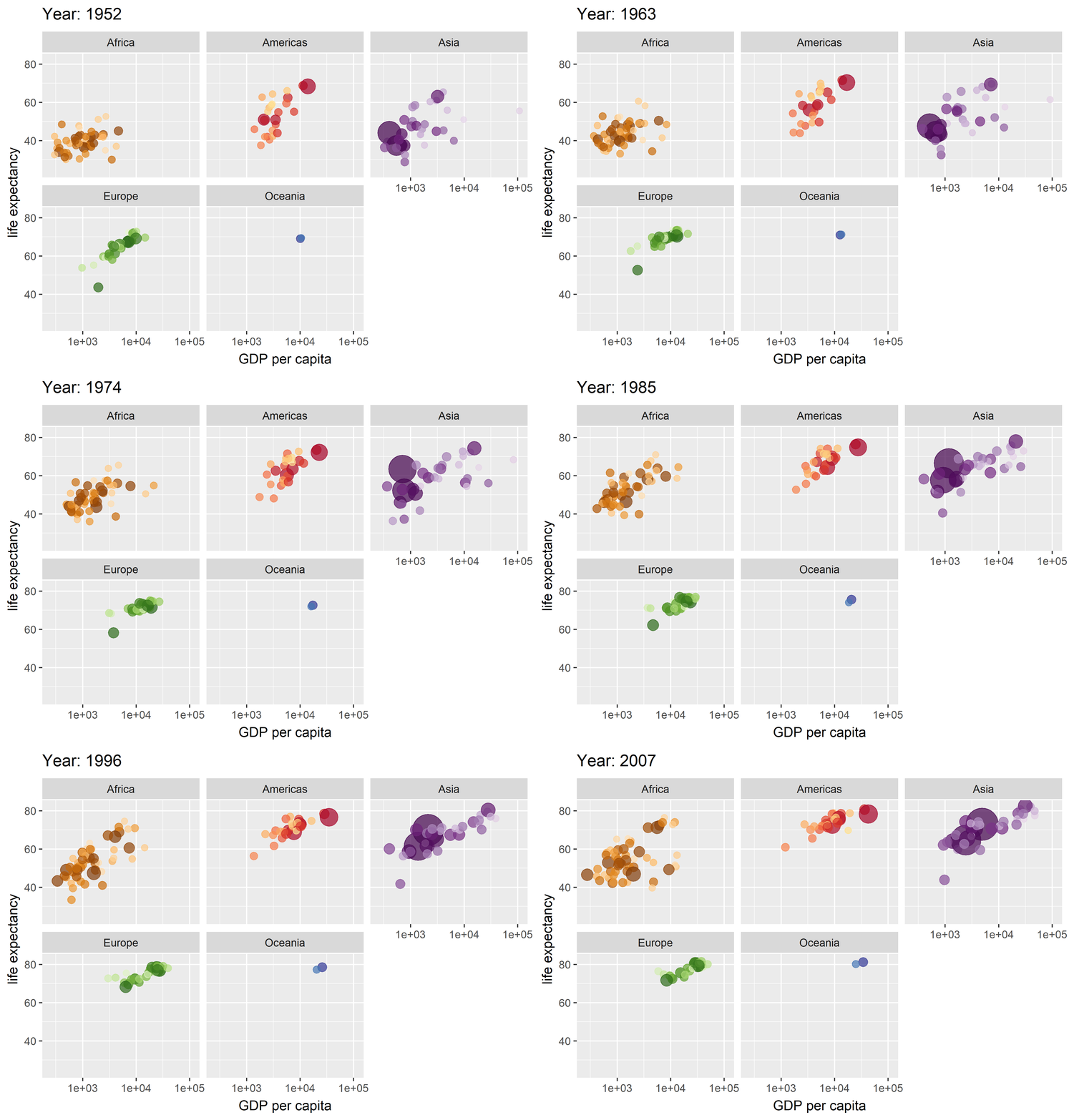 --> ] --- class: hide_logo background-image: url(imgs/logo-plotly.png) background-size: 5% background-position: 5% 3% ###   `plotly`<sup>.font60[v4.10.0]</sup> .pull-left.font110[ > Create interactive web graphics from `ggplot2` graphs > and/or a custom interface to the 'plotly.js' > inspired by the _grammar of graphics_. ```r # install.packages("plotly") *library(plotly) p <- gapminder %>% filter(year == 2007) %>% ggplot(aes(gdpPercap, lifeExp, size = pop, color = continent)) + geom_point() + scale_x_log10() + theme_bw() *ggplotly(p) ``` ] -- .pull-right[ <br> <div id="htmlwidget-8df4120ed34ce736658c" style="width:100%;height:65%;" class="plotly html-widget"></div> <script type="application/json" data-for="htmlwidget-8df4120ed34ce736658c">{"x":{"data":[{"x":[3.79402544509666,3.68099065562682,3.1587498285201,4.09933015629768,3.08530235219712,2.63353984732021,3.31007599301138,2.848814873635,3.23148583131337,2.99394204506796,2.44334414004637,3.56021253312911,3.18885823537455,3.31858116595608,3.74672610693845,4.08472243900371,2.80710831941093,2.83935583435696,4.12078722664154,2.87665060639063,3.1230701584329,2.9743524119827,2.76285235400399,3.16531831968284,3.19571467604724,2.61753222691212,4.08125724466051,3.01902074595738,2.88044194586588,3.0181100381011,3.25603221652431,4.03969130967891,3.58208328429303,2.91576148434958,3.68224081186337,2.79216530171644,3.30405457229069,3.88480230343241,2.93605531183875,3.20369500466057,3.23362351372365,2.93577962517273,2.96667714274902,3.96706370233863,3.41537321502711,3.65451158423759,3.04433674769752,2.94594592049266,3.85082524675123,3.02382022004224,3.10421784482941,2.67182915731664],"y":[72.301,42.731,56.728,50.728,52.295,49.58,50.43,44.741,50.651,65.152,46.462,55.322,48.328,54.791,71.338,51.579,58.04,52.947,56.735,59.448,60.022,56.007,46.388,54.11,42.592,45.678,73.952,59.443,48.303,54.467,64.164,72.801,71.164,42.082,52.906,56.867,46.859,76.442,46.242,65.528,63.062,42.568,48.159,49.339,58.556,39.613,52.517,58.42,73.923,51.542,42.384,43.487],"text":["gdpPercap: 6223<br />lifeExp: 72.3<br />pop: 33333216<br />continent: Africa","gdpPercap: 4797<br />lifeExp: 42.7<br />pop: 12420476<br />continent: Africa","gdpPercap: 1441<br />lifeExp: 56.7<br />pop: 8078314<br />continent: Africa","gdpPercap: 12570<br />lifeExp: 50.7<br />pop: 1639131<br />continent: Africa","gdpPercap: 1217<br />lifeExp: 52.3<br />pop: 14326203<br />continent: Africa","gdpPercap: 430<br />lifeExp: 49.6<br />pop: 8390505<br />continent: Africa","gdpPercap: 2042<br />lifeExp: 50.4<br />pop: 17696293<br />continent: Africa","gdpPercap: 706<br />lifeExp: 44.7<br />pop: 4369038<br />continent: Africa","gdpPercap: 1704<br />lifeExp: 50.7<br />pop: 10238807<br />continent: Africa","gdpPercap: 986<br />lifeExp: 65.2<br />pop: 710960<br />continent: Africa","gdpPercap: 278<br />lifeExp: 46.5<br />pop: 64606759<br />continent: Africa","gdpPercap: 3633<br />lifeExp: 55.3<br />pop: 3800610<br />continent: Africa","gdpPercap: 1545<br />lifeExp: 48.3<br />pop: 18013409<br />continent: Africa","gdpPercap: 2082<br />lifeExp: 54.8<br />pop: 496374<br />continent: Africa","gdpPercap: 5581<br />lifeExp: 71.3<br />pop: 80264543<br />continent: Africa","gdpPercap: 12154<br />lifeExp: 51.6<br />pop: 551201<br />continent: Africa","gdpPercap: 641<br />lifeExp: 58.0<br />pop: 4906585<br />continent: Africa","gdpPercap: 691<br />lifeExp: 52.9<br />pop: 76511887<br />continent: Africa","gdpPercap: 13206<br />lifeExp: 56.7<br />pop: 1454867<br />continent: Africa","gdpPercap: 753<br />lifeExp: 59.4<br />pop: 1688359<br />continent: Africa","gdpPercap: 1328<br />lifeExp: 60.0<br />pop: 22873338<br />continent: Africa","gdpPercap: 943<br />lifeExp: 56.0<br />pop: 9947814<br />continent: Africa","gdpPercap: 579<br />lifeExp: 46.4<br />pop: 1472041<br />continent: Africa","gdpPercap: 1463<br />lifeExp: 54.1<br />pop: 35610177<br />continent: Africa","gdpPercap: 1569<br />lifeExp: 42.6<br />pop: 2012649<br />continent: Africa","gdpPercap: 415<br />lifeExp: 45.7<br />pop: 3193942<br />continent: Africa","gdpPercap: 12057<br />lifeExp: 74.0<br />pop: 6036914<br />continent: Africa","gdpPercap: 1045<br />lifeExp: 59.4<br />pop: 19167654<br />continent: Africa","gdpPercap: 759<br />lifeExp: 48.3<br />pop: 13327079<br />continent: Africa","gdpPercap: 1043<br />lifeExp: 54.5<br />pop: 12031795<br />continent: Africa","gdpPercap: 1803<br />lifeExp: 64.2<br />pop: 3270065<br />continent: Africa","gdpPercap: 10957<br />lifeExp: 72.8<br />pop: 1250882<br />continent: Africa","gdpPercap: 3820<br />lifeExp: 71.2<br />pop: 33757175<br />continent: Africa","gdpPercap: 824<br />lifeExp: 42.1<br />pop: 19951656<br />continent: Africa","gdpPercap: 4811<br />lifeExp: 52.9<br />pop: 2055080<br />continent: Africa","gdpPercap: 620<br />lifeExp: 56.9<br />pop: 12894865<br />continent: Africa","gdpPercap: 2014<br />lifeExp: 46.9<br />pop: 135031164<br />continent: Africa","gdpPercap: 7670<br />lifeExp: 76.4<br />pop: 798094<br />continent: Africa","gdpPercap: 863<br />lifeExp: 46.2<br />pop: 8860588<br />continent: Africa","gdpPercap: 1598<br />lifeExp: 65.5<br />pop: 199579<br />continent: Africa","gdpPercap: 1712<br />lifeExp: 63.1<br />pop: 12267493<br />continent: Africa","gdpPercap: 863<br />lifeExp: 42.6<br />pop: 6144562<br />continent: Africa","gdpPercap: 926<br />lifeExp: 48.2<br />pop: 9118773<br />continent: Africa","gdpPercap: 9270<br />lifeExp: 49.3<br />pop: 43997828<br />continent: Africa","gdpPercap: 2602<br />lifeExp: 58.6<br />pop: 42292929<br />continent: Africa","gdpPercap: 4513<br />lifeExp: 39.6<br />pop: 1133066<br />continent: Africa","gdpPercap: 1107<br />lifeExp: 52.5<br />pop: 38139640<br />continent: Africa","gdpPercap: 883<br />lifeExp: 58.4<br />pop: 5701579<br />continent: Africa","gdpPercap: 7093<br />lifeExp: 73.9<br />pop: 10276158<br />continent: Africa","gdpPercap: 1056<br />lifeExp: 51.5<br />pop: 29170398<br />continent: Africa","gdpPercap: 1271<br />lifeExp: 42.4<br />pop: 11746035<br />continent: Africa","gdpPercap: 470<br />lifeExp: 43.5<br />pop: 12311143<br />continent: Africa"],"type":"scatter","mode":"markers","marker":{"autocolorscale":false,"color":"rgba(248,118,109,1)","opacity":1,"size":[6.77527173254923,5.598900411863,5.24035330707835,4.40395768399738,5.7356199392208,5.26901439581437,5.9564773609874,4.8422259478741,5.42852631166044,4.15169850163956,7.9562662998771,4.76713328307226,5.97611663817011,4.06305719383881,8.43636871732964,4.08813627550005,4.90865391372741,8.32592567062337,4.36262596871136,4.41454467512776,6.25770233060098,5.40445197132612,4.3666011970112,6.87649613589243,4.480300710223,4.68010775450673,5.03693920169262,6.0461636385333,5.66517797748393,5.5697344023561,4.69148323166173,4.31315004312066,6.79437672410524,6.09253246174489,4.48845333089755,5.6338762963756,9.82271393327331,4.18215900239245,5.3111594952501,3.77952755905512,5.58747695964146,5.04848038390226,5.33382085391144,7.22380829377829,7.1561065468969,4.282361176813,6.98520027409899,5.00028803920838,5.43159101796171,6.580769078434,5.54798462578679,5.59074371141117],"symbol":"circle","line":{"width":1.88976377952756,"color":"rgba(248,118,109,1)"}},"hoveron":"points","name":"Africa","legendgroup":"Africa","showlegend":true,"xaxis":"x","yaxis":"y","hoverinfo":"text","frame":null},{"x":[4.10650977201769,3.58230625931688,3.95740617340857,4.56013669242519,4.11963981438709,3.84550611104731,3.98430499758718,3.95173097080165,3.77998406330737,3.83716291957619,3.75802981175127,3.71483669984604,3.0797733480287,3.55002410662006,3.86456330372846,4.07836889751077,3.43922544380543,3.99163295350919,3.6204315729333,3.86975405900188,4.28620284789525,4.25547776303394,4.632979883279,4.02577526370184,4.05750656798335],"y":[75.32,65.554,72.39,80.653,78.553,72.889,78.782,78.273,72.235,74.994,71.878,70.259,60.916,70.198,72.567,76.195,72.899,75.537,71.752,71.421,78.746,69.819,78.242,76.384,73.747],"text":["gdpPercap: 12779<br />lifeExp: 75.3<br />pop: 40301927<br />continent: Americas","gdpPercap: 3822<br />lifeExp: 65.6<br />pop: 9119152<br />continent: Americas","gdpPercap: 9066<br />lifeExp: 72.4<br />pop: 190010647<br />continent: Americas","gdpPercap: 36319<br />lifeExp: 80.7<br />pop: 33390141<br />continent: Americas","gdpPercap: 13172<br />lifeExp: 78.6<br />pop: 16284741<br />continent: Americas","gdpPercap: 7007<br />lifeExp: 72.9<br />pop: 44227550<br />continent: Americas","gdpPercap: 9645<br />lifeExp: 78.8<br />pop: 4133884<br />continent: Americas","gdpPercap: 8948<br />lifeExp: 78.3<br />pop: 11416987<br />continent: Americas","gdpPercap: 6025<br />lifeExp: 72.2<br />pop: 9319622<br />continent: Americas","gdpPercap: 6873<br />lifeExp: 75.0<br />pop: 13755680<br />continent: Americas","gdpPercap: 5728<br />lifeExp: 71.9<br />pop: 6939688<br />continent: Americas","gdpPercap: 5186<br />lifeExp: 70.3<br />pop: 12572928<br />continent: Americas","gdpPercap: 1202<br />lifeExp: 60.9<br />pop: 8502814<br />continent: Americas","gdpPercap: 3548<br />lifeExp: 70.2<br />pop: 7483763<br />continent: Americas","gdpPercap: 7321<br />lifeExp: 72.6<br />pop: 2780132<br />continent: Americas","gdpPercap: 11978<br />lifeExp: 76.2<br />pop: 108700891<br />continent: Americas","gdpPercap: 2749<br />lifeExp: 72.9<br />pop: 5675356<br />continent: Americas","gdpPercap: 9809<br />lifeExp: 75.5<br />pop: 3242173<br />continent: Americas","gdpPercap: 4173<br />lifeExp: 71.8<br />pop: 6667147<br />continent: Americas","gdpPercap: 7409<br />lifeExp: 71.4<br />pop: 28674757<br />continent: Americas","gdpPercap: 19329<br />lifeExp: 78.7<br />pop: 3942491<br />continent: Americas","gdpPercap: 18009<br />lifeExp: 69.8<br />pop: 1056608<br />continent: Americas","gdpPercap: 42952<br />lifeExp: 78.2<br />pop: 301139947<br />continent: Americas","gdpPercap: 10611<br />lifeExp: 76.4<br />pop: 3447496<br />continent: Americas","gdpPercap: 11416<br />lifeExp: 73.7<br />pop: 26084662<br />continent: Americas"],"type":"scatter","mode":"markers","marker":{"autocolorscale":false,"color":"rgba(163,165,0,1)","opacity":1,"size":[7.07528369289545,5.33385387656466,10.9497220287062,6.77784403625228,5.86681801798997,7.23282911414924,4.81182340745332,5.52260397354913,5.35122378867242,5.69571313317988,5.1306777542305,5.61021330347734,5.27919109958551,5.18415329737334,4.6155666029278,9.20063061292984,4.99737544049698,4.68733172329479,5.10307852744492,6.55670348636785,4.78640121163658,4.26132881438327,12.807919245623,4.71746231550028,6.42738713411734],"symbol":"circle","line":{"width":1.88976377952756,"color":"rgba(163,165,0,1)"}},"hoveron":"points","name":"Americas","legendgroup":"Americas","showlegend":true,"xaxis":"x","yaxis":"y","hoverinfo":"text","frame":null},{"x":[2.98881764549129,4.47415867018597,3.143406361057,3.23395473727517,3.6954041667466,4.59906367268864,3.38955773121288,3.54908318988216,4.06467188236304,3.65041068311967,4.40693643553008,4.50045697098462,3.65508665949928,3.20223362703668,4.3682522837381,4.67492531406996,4.01957563822304,4.09522710701315,3.49076900592376,2.97497199429807,3.03796794384465,4.34862010618943,3.41596567540354,3.50385616482709,4.33555481758265,4.67341887079622,3.59880094359832,3.62164856315343,4.45815837772449,3.87264545733796,3.38767031916547,3.4807755960326,3.35808147396803],"y":[43.828,75.635,64.062,59.723,72.961,82.208,64.698,70.65,70.964,59.545,80.745,82.603,72.535,67.297,78.623,77.588,71.993,74.241,66.803,62.069,63.785,75.64,65.483,71.688,72.777,79.972,72.396,74.143,78.4,70.616,74.249,73.422,62.698],"text":["gdpPercap: 975<br />lifeExp: 43.8<br />pop: 31889923<br />continent: Asia","gdpPercap: 29796<br />lifeExp: 75.6<br />pop: 708573<br />continent: Asia","gdpPercap: 1391<br />lifeExp: 64.1<br />pop: 150448339<br />continent: Asia","gdpPercap: 1714<br />lifeExp: 59.7<br />pop: 14131858<br />continent: Asia","gdpPercap: 4959<br />lifeExp: 73.0<br />pop: 1318683096<br />continent: Asia","gdpPercap: 39725<br />lifeExp: 82.2<br />pop: 6980412<br />continent: Asia","gdpPercap: 2452<br />lifeExp: 64.7<br />pop: 1110396331<br />continent: Asia","gdpPercap: 3541<br />lifeExp: 70.7<br />pop: 223547000<br />continent: Asia","gdpPercap: 11606<br />lifeExp: 71.0<br />pop: 69453570<br />continent: Asia","gdpPercap: 4471<br />lifeExp: 59.5<br />pop: 27499638<br />continent: Asia","gdpPercap: 25523<br />lifeExp: 80.7<br />pop: 6426679<br />continent: Asia","gdpPercap: 31656<br />lifeExp: 82.6<br />pop: 127467972<br />continent: Asia","gdpPercap: 4519<br />lifeExp: 72.5<br />pop: 6053193<br />continent: Asia","gdpPercap: 1593<br />lifeExp: 67.3<br />pop: 23301725<br />continent: Asia","gdpPercap: 23348<br />lifeExp: 78.6<br />pop: 49044790<br />continent: Asia","gdpPercap: 47307<br />lifeExp: 77.6<br />pop: 2505559<br />continent: Asia","gdpPercap: 10461<br />lifeExp: 72.0<br />pop: 3921278<br />continent: Asia","gdpPercap: 12452<br />lifeExp: 74.2<br />pop: 24821286<br />continent: Asia","gdpPercap: 3096<br />lifeExp: 66.8<br />pop: 2874127<br />continent: Asia","gdpPercap: 944<br />lifeExp: 62.1<br />pop: 47761980<br />continent: Asia","gdpPercap: 1091<br />lifeExp: 63.8<br />pop: 28901790<br />continent: Asia","gdpPercap: 22316<br />lifeExp: 75.6<br />pop: 3204897<br />continent: Asia","gdpPercap: 2606<br />lifeExp: 65.5<br />pop: 169270617<br />continent: Asia","gdpPercap: 3190<br />lifeExp: 71.7<br />pop: 91077287<br />continent: Asia","gdpPercap: 21655<br />lifeExp: 72.8<br />pop: 27601038<br />continent: Asia","gdpPercap: 47143<br />lifeExp: 80.0<br />pop: 4553009<br />continent: Asia","gdpPercap: 3970<br />lifeExp: 72.4<br />pop: 20378239<br />continent: Asia","gdpPercap: 4185<br />lifeExp: 74.1<br />pop: 19314747<br />continent: Asia","gdpPercap: 28718<br />lifeExp: 78.4<br />pop: 23174294<br />continent: Asia","gdpPercap: 7458<br />lifeExp: 70.6<br />pop: 65068149<br />continent: Asia","gdpPercap: 2442<br />lifeExp: 74.2<br />pop: 85262356<br />continent: Asia","gdpPercap: 3025<br />lifeExp: 73.4<br />pop: 4018332<br />continent: Asia","gdpPercap: 2281<br />lifeExp: 62.7<br />pop: 22211743<br />continent: Asia"],"type":"scatter","mode":"markers","marker":{"autocolorscale":false,"color":"rgba(0,191,125,1)","opacity":1,"size":[6.70929835135528,4.1508288847182,10.1588656081799,5.72211801075065,22.6771653543307,5.13475345805415,21.1203680953071,11.5573968303758,8.11057131553749,6.49879524068774,5.07824026167466,9.65077587363648,5.03869129857133,6.28100350114513,7.4168446506104,4.56983839481089,4.78354392302204,6.36196165910748,4.63065651672448,7.36876387589759,6.56775273775666,4.68175365529605,10.5466615830696,8.74086596862592,6.50384061768477,4.86541785279541,6.11737587407916,6.05493528307165,6.27409491409121,7.97119993399054,8.57951329437571,4.79655097614072,6.22127948111281],"symbol":"circle","line":{"width":1.88976377952756,"color":"rgba(0,191,125,1)"}},"hoveron":"points","name":"Asia","legendgroup":"Asia","showlegend":true,"xaxis":"x","yaxis":"y","hoverinfo":"text","frame":null},{"x":[3.77356920876217,4.55782580062218,4.52753459151331,3.87194045947979,4.02860349094832,4.16492428251317,4.35856884462783,4.54750911081685,4.52123074598147,4.48387269225076,4.50745611553652,4.43993889119905,4.25548825822109,4.55847803563392,4.60933819969144,4.45590597950278,3.96632461957789,4.56582342810493,4.69335042800253,4.18723649435127,4.31195820191596,4.03376444688129,3.990628940935,4.27133768016358,4.41108505321789,4.4597100052953,4.52968372605252,4.57410560181062,3.92728187211911,4.52118074293136],"y":[76.423,79.829,79.441,74.852,73.005,75.748,76.486,78.332,79.313,80.657,79.406,79.483,73.338,81.757,78.885,80.546,74.543,79.762,80.196,75.563,78.098,72.476,74.002,74.663,77.926,80.941,80.884,81.701,71.777,79.425],"text":["gdpPercap: 5937<br />lifeExp: 76.4<br />pop: 3600523<br />continent: Europe","gdpPercap: 36126<br />lifeExp: 79.8<br />pop: 8199783<br />continent: Europe","gdpPercap: 33693<br />lifeExp: 79.4<br />pop: 10392226<br />continent: Europe","gdpPercap: 7446<br />lifeExp: 74.9<br />pop: 4552198<br />continent: Europe","gdpPercap: 10681<br />lifeExp: 73.0<br />pop: 7322858<br />continent: Europe","gdpPercap: 14619<br />lifeExp: 75.7<br />pop: 4493312<br />continent: Europe","gdpPercap: 22833<br />lifeExp: 76.5<br />pop: 10228744<br />continent: Europe","gdpPercap: 35278<br />lifeExp: 78.3<br />pop: 5468120<br />continent: Europe","gdpPercap: 33207<br />lifeExp: 79.3<br />pop: 5238460<br />continent: Europe","gdpPercap: 30470<br />lifeExp: 80.7<br />pop: 61083916<br />continent: Europe","gdpPercap: 32170<br />lifeExp: 79.4<br />pop: 82400996<br />continent: Europe","gdpPercap: 27538<br />lifeExp: 79.5<br />pop: 10706290<br />continent: Europe","gdpPercap: 18009<br />lifeExp: 73.3<br />pop: 9956108<br />continent: Europe","gdpPercap: 36181<br />lifeExp: 81.8<br />pop: 301931<br />continent: Europe","gdpPercap: 40676<br />lifeExp: 78.9<br />pop: 4109086<br />continent: Europe","gdpPercap: 28570<br />lifeExp: 80.5<br />pop: 58147733<br />continent: Europe","gdpPercap: 9254<br />lifeExp: 74.5<br />pop: 684736<br />continent: Europe","gdpPercap: 36798<br />lifeExp: 79.8<br />pop: 16570613<br />continent: Europe","gdpPercap: 49357<br />lifeExp: 80.2<br />pop: 4627926<br />continent: Europe","gdpPercap: 15390<br />lifeExp: 75.6<br />pop: 38518241<br />continent: Europe","gdpPercap: 20510<br />lifeExp: 78.1<br />pop: 10642836<br />continent: Europe","gdpPercap: 10808<br />lifeExp: 72.5<br />pop: 22276056<br />continent: Europe","gdpPercap: 9787<br />lifeExp: 74.0<br />pop: 10150265<br />continent: Europe","gdpPercap: 18678<br />lifeExp: 74.7<br />pop: 5447502<br />continent: Europe","gdpPercap: 25768<br />lifeExp: 77.9<br />pop: 2009245<br />continent: Europe","gdpPercap: 28821<br />lifeExp: 80.9<br />pop: 40448191<br />continent: Europe","gdpPercap: 33860<br />lifeExp: 80.9<br />pop: 9031088<br />continent: Europe","gdpPercap: 37506<br />lifeExp: 81.7<br />pop: 7554661<br />continent: Europe","gdpPercap: 8458<br />lifeExp: 71.8<br />pop: 71158647<br />continent: Europe","gdpPercap: 33203<br />lifeExp: 79.4<br />pop: 60776238<br />continent: Europe"],"type":"scatter","mode":"markers","marker":{"autocolorscale":false,"color":"rgba(0,176,246,1)","opacity":1,"size":[4.73930360976545,5.2515712457991,5.44107849786917,4.86531670289218,5.16855282584858,4.85794694387522,5.42769965273683,4.97410786436283,4.94778140481952,7.84043376621969,8.49809123744673,5.46648280699294,5.40514308400654,3.9460291298415,4.8085649745634,7.74130405516196,4.14203032052794,5.88528441607637,4.87472139425141,7.00115515259145,5.46138101214586,6.22484391610449,5.42123845033248,4.97176812735327,4.47964255788798,7.0812884751231,5.32616181946541,5.19097245574501,8.16356363915206,7.83015990857845],"symbol":"circle","line":{"width":1.88976377952756,"color":"rgba(0,176,246,1)"}},"hoveron":"points","name":"Europe","legendgroup":"Europe","showlegend":true,"xaxis":"x","yaxis":"y","hoverinfo":"text","frame":null},{"x":[4.53700472145269,4.40114211228811],"y":[81.235,80.204],"text":["gdpPercap: 34435<br />lifeExp: 81.2<br />pop: 20434176<br />continent: Oceania","gdpPercap: 25185<br />lifeExp: 80.2<br />pop: 4115771<br />continent: Oceania"],"type":"scatter","mode":"markers","marker":{"autocolorscale":false,"color":"rgba(231,107,243,1)","opacity":1,"size":[6.12061399094626,4.80944439195868],"symbol":"circle","line":{"width":1.88976377952756,"color":"rgba(231,107,243,1)"}},"hoveron":"points","name":"Oceania","legendgroup":"Oceania","showlegend":true,"xaxis":"x","yaxis":"y","hoverinfo":"text","frame":null}],"layout":{"margin":{"t":23.3059360730594,"r":7.30593607305936,"b":37.2602739726027,"l":37.2602739726027},"plot_bgcolor":"rgba(255,255,255,1)","paper_bgcolor":"rgba(255,255,255,1)","font":{"color":"rgba(0,0,0,1)","family":"","size":14.6118721461187},"xaxis":{"domain":[0,1],"automargin":true,"type":"linear","autorange":false,"range":[2.33084382564856,4.80585074240034],"tickmode":"array","ticktext":["300","1000","3000","10000","30000"],"tickvals":[2.47712125471966,3,3.47712125471966,4,4.47712125471966],"categoryorder":"array","categoryarray":["300","1000","3000","10000","30000"],"nticks":null,"ticks":"outside","tickcolor":"rgba(51,51,51,1)","ticklen":3.65296803652968,"tickwidth":0.66417600664176,"showticklabels":true,"tickfont":{"color":"rgba(77,77,77,1)","family":"","size":11.689497716895},"tickangle":-0,"showline":false,"linecolor":null,"linewidth":0,"showgrid":true,"gridcolor":"rgba(235,235,235,1)","gridwidth":0.66417600664176,"zeroline":false,"anchor":"y","title":{"text":"gdpPercap","font":{"color":"rgba(0,0,0,1)","family":"","size":14.6118721461187}},"hoverformat":".2f"},"yaxis":{"domain":[0,1],"automargin":true,"type":"linear","autorange":false,"range":[37.4635,84.7525],"tickmode":"array","ticktext":["40","50","60","70","80"],"tickvals":[40,50,60,70,80],"categoryorder":"array","categoryarray":["40","50","60","70","80"],"nticks":null,"ticks":"outside","tickcolor":"rgba(51,51,51,1)","ticklen":3.65296803652968,"tickwidth":0.66417600664176,"showticklabels":true,"tickfont":{"color":"rgba(77,77,77,1)","family":"","size":11.689497716895},"tickangle":-0,"showline":false,"linecolor":null,"linewidth":0,"showgrid":true,"gridcolor":"rgba(235,235,235,1)","gridwidth":0.66417600664176,"zeroline":false,"anchor":"x","title":{"text":"lifeExp","font":{"color":"rgba(0,0,0,1)","family":"","size":14.6118721461187}},"hoverformat":".2f"},"shapes":[{"type":"rect","fillcolor":"transparent","line":{"color":"rgba(51,51,51,1)","width":0.66417600664176,"linetype":"solid"},"yref":"paper","xref":"paper","x0":0,"x1":1,"y0":0,"y1":1}],"showlegend":true,"legend":{"bgcolor":"rgba(255,255,255,1)","bordercolor":"transparent","borderwidth":1.88976377952756,"font":{"color":"rgba(0,0,0,1)","family":"","size":11.689497716895},"title":{"text":"continent<br />pop","font":{"color":"rgba(0,0,0,1)","family":"","size":14.6118721461187}}},"hovermode":"closest","barmode":"relative"},"config":{"doubleClick":"reset","modeBarButtonsToAdd":["hoverclosest","hovercompare"],"showSendToCloud":false},"source":"A","attrs":{"21fc2d1574cd":{"x":{},"y":{},"size":{},"colour":{},"type":"scatter"}},"cur_data":"21fc2d1574cd","visdat":{"21fc2d1574cd":["function (y) ","x"]},"highlight":{"on":"plotly_click","persistent":false,"dynamic":false,"selectize":false,"opacityDim":0.2,"selected":{"opacity":1},"debounce":0},"shinyEvents":["plotly_hover","plotly_click","plotly_selected","plotly_relayout","plotly_brushed","plotly_brushing","plotly_clickannotation","plotly_doubleclick","plotly_deselect","plotly_afterplot","plotly_sunburstclick"],"base_url":"https://plot.ly"},"evals":[],"jsHooks":[]}</script> ] --- class: inverse, center, middle # 课后作业 --- class: middle .font120[ 🕐 根据 L2 课程讲义的打印稿,在 📑 _R Script_ 中键入并完成全部代码的运行 🕑 请学习 📖 .bold[[{{_R for Data Science_}}](https://r4ds.had.co.nz/)] <sup>*</sup> 一书关于数据可视化的第3章和第28章(以及第4、6、8章关于工作流程)的内容 🕒 从 📖 .bold[[{{_R Graphics Cookbook_}}](https://r-graphics.org/)] <sup>*</sup> 一书中挑选.red[__两章__],复制性代码练习 🕓 下载(打印)📰 .bold[[{{ggplot2-cheatsheet}}](docs/ggplot2-cheatsheet.pdf)] 并浏览之 🕔 登录浏览 🖼 .bold[[{{The R Graph Gallery}}](https://www.r-graph-gallery.com/index.html)] 🕕 登录浏览 📦 .bold[[{{ggplot2 extentions}}](https://exts.ggplot2.tidyverse.org/gallery/)],进一步了解 `ggplot2` 包的“生态圈” 🕖 _**进阶内容**_:R 对中文字体的支持不够理想,可参考 📝 .bold[[{{_RJournal_的文章}}](https://journal.r-project.org/archive/2015-1/qiu.pdf)]以及帖子 .bold[[{{showtext}}](https://cosx.org/2014/01/showtext-interesting-fonts-and-graphs)] 中提到的解决方案和有趣示例 <br> ] .footnote.red[ \* 若英文看起来实在吃力 😵, 这两本书的中文翻译版都有电子版发行,请同学们自行学习对应章节。我个人建议同学们(可等网上商城打折时)购买实体书,放在案头作学习参考。] --- class: middle .font120[ 🕐 根据 L2 课程讲义的打印稿,在 📑 _R Script_ 中键入并完成全部代码的运行 ] -- - .bold[打开新的 R script 文件] - `Ctrl+Shift+N` 打开 -> `Ctrl+S` 存盘为“_L02_coding_practice.R_” - 注:文件保存路径和文件名最好为英文,中间不要有空格 -- - .bold[输入与运行代码] - 长代码手动断行,最好不要超过80个字符 - 灵活使用快捷键,如 `Tab`(代码提示与自动补全)、`Ctrl+A`(选中全部代码) -> `Ctrl+Shift+A`(代码重新格式化)等 - `Ctrl+Enter` 运行光标所在行或选中代码(`Ctrl+Alt+R` 运行全部代码,`Ctrl+Shift+P` 重新运行代码,`Ctrl+Alt+P` 运行光标前的代码) -- - .bold[注释] - 以 # 作为注释开始标记,如说明性文字、区分不同代码块(Ctrl+Shift+R) - 最后加入一段注释说明,简单说说使用ggplot2包的体会 -- - .bold[提交代码] - 可结队编写代码,共同署名,分别提交,但不能完全雷同 - 2022年9月26日22:00前通过 [{{坚果云链接}}](https://workspace.jianguoyun.com/inbox/collect/a06f3a70ea64480691024f239e216976/submitv2) 直接提交代码文档 --- class: center middle background-image: url(imgs/xaringan.png) background-size: 12% background-position: 50% 40% <br><br><br><br><br><br><br> <hr color='#f00' size='2px' width='80%'> <br> .Large.red[_**本网页版讲义的制作由 R 包 [{{`xaringan`}}](https://github.com/yihui/xaringan) 赋能!**_]